
Can’t access slotvip99.com from your phone or computer? You’re not alone. Many Filipino players run into this issue because their internet service provider’s default DNS is either slow, outdated or actively restricting certain domains. In this guide, Slotvip will walk you through how to install 1.1.1.1 to access Slotvip by 5 different methods to set up 1.1.1.1 on Android, iPhone, Windows and even Google Chrome, so you can get back to playing at Slotvip within minutes.
5 Methods To Install 1.1.1.1 Within Minutes
To help you get started quickly, here are five simple methods to install and use 1.1.1.1 across different devices and operating systems. Choose the one that best fits your needs and technical comfort level.
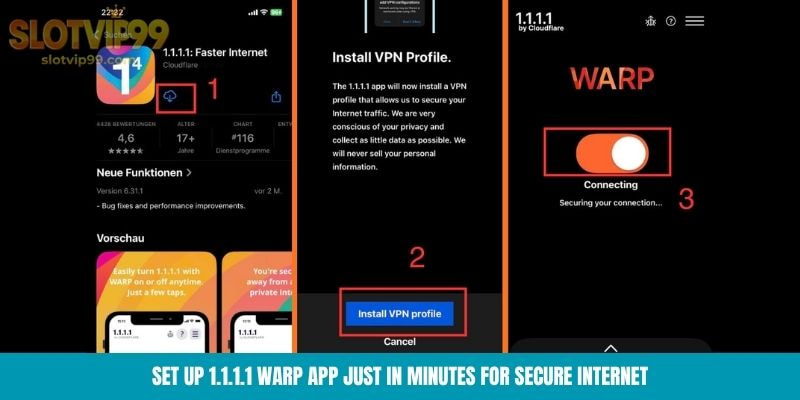
Method 1: Install The 1.1.1.1 WARP App (Android & iOS)
Official 1.1.1.1: Faster Internet app by Cloudflare encrypts your entire connection with a single tap, no settings to configure and no technical knowledge needed.
- Step 1: Open the Google Play Store (Android) or Apple App Store (iOS).
- Step 2: Search for “1.1.1.1” by Cloudflare Inc. The app icon is a dark background with “1.1.1.1” in white text. Make sure you download the official app, the developer name should read Cloudflare, Inc.
- Step 3: Install the app and open it. Accept the Terms of Service when prompted.
- Step 4: The app will ask permission to set up a VPN profile on your device. Tap Allow or Install VPN Profile, this is required for the app to route your DNS through Cloudflare’s servers.
- Step 5: Toggle the large WARP switch to the Connected position. The switch turns orange when active.
Pro tip: If you only want to change your DNS without encrypting all traffic, tap the menu icon (three lines) inside the app and switch from WARP mode to 1.1.1.1 mode. DNS only mode uses less battery and data while still resolving access issues.
Method 2: Use Private DNS On Android (No App Needed)
If you’d rather not install an app, Android 9 (Pie) and later versions have a built-in Private DNS feature that works system wide on both Wi Fi and mobile data, across all networks.
- Step 1: Open Settings on your phone.
- Step 2: Tap Network & internet (or Connections on Samsung devices).
- Step 3: Tap Private DNS. If you don’t see it directly, look under Advanced or More connection settings. You can also search “Private DNS” in the Settings search bar.
- Step 4: Select Private DNS provider hostname.
- Step 5: Type one.one.one.one in the hostname field. Do not enter the IP address 1.1.1.1 because Android requires a hostname for encrypted DNS.
- Step 6: Tap Save.
The advantage of this method over the app is that it uses zero battery and runs at the system level without a VPN profile. Once configured, every app and browser on your phone uses Cloudflare’s encrypted DNS automatically. Open your browser and go to slotvip99.com to confirm access.
Method 3: Change DNS On iPhone/iOS
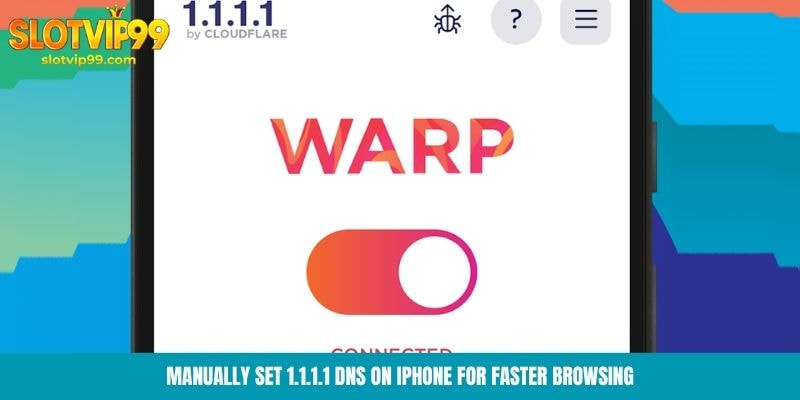
iPhone users have two options. The app method (Method 1 above) is the most convenient since it works across all networks automatically. But if you prefer a manual approach for your current Wi Fi network, follow these steps:
- Step 1: Open Settings and tap Wi Fi.
- Step 2: Tap the blue info icon (ⓘ) next to the Wi Fi network you’re currently connected to.
- Step 3: Scroll down and tap Configure DNS.
- Step 4: Switch from Automatic to Manual.
- Step 5: Delete any existing DNS server entries by tapping the red minus icon next to each one.
- Step 6: Tap + Add Server and enter 1.1.1.1
- Step 7: Tap + Add Server again and enter 1.0.0.1 as a backup.
- Step 8: Tap Save in the top right corner.
Important note: This manual configuration only applies to the specific Wi Fi network you configured it on. If you switch to a different Wi Fi network or use mobile data, you’ll need to repeat the process or better yet just install the 1.1.1.1 app (Method 1) which handles everything automatically.
Method 4: Set Up 1.1.1.1 On Windows PC
If you’re playing at Slotvip on a desktop or laptop, changing the DNS on Windows takes about 3 minutes. The steps differ slightly between Windows 10 and Windows 11.
Windows 11
- Step 1: Open Settings (press Win + I).
- Step 2: Click Network & internet in the left sidebar.
- Step 3: Click your active connection, either Ethernet or Wi Fi.
- Step 4: Find DNS server assignment and click the Edit button.
- Step 5: Change the dropdown from Automatic (DHCP) to Manual.
- Step 6: Toggle IPv4 on. Enter the following:
- Preferred DNS: 1.1.1.1
- Alternate DNS: 1.0.0.1
- Step 7: (Optional but recommended) Under DNS over HTTPS, select On (automatic template) for encrypted DNS.
- Step 8: Click Save.
Windows 10
- Step 1: Open Control Panel and navigate to Network and Sharing Center.
- Step 2: Click Change adapter settings in the left sidebar.
- Step 3: Right click your active network connection (Wi Fi or Ethernet) and select Properties.
- Step 4: Double click Internet Protocol Version 4 (TCP/IPv4).
- Step 5: Select Use the following DNS server addresses and enter:
- Preferred DNS server: 1.1.1.1
- Alternate DNS server: 1.0.0.1
- Step 6: Click OK, then Close.
After changing DNS settings on Windows, open Command Prompt (search “cmd” in the Start menu) and run: ipconfig/flushdns This clears old cached DNS entries so your system starts using Cloudflare’s servers immediately. Now open a browser and visit Slotvip.
Method 5: Enable Secure DNS In Google Chrome
This is the quickest method if you only need browser level DNS changes. It works on any device running Google Chrome android, iOS, Windows or Mac.
- Step 1: Open Google Chrome and type chrome://settings/security in the address bar, then press Enter.
- Step 2: Scroll down to the Use secure DNS section.
- Step 3: Toggle it on if it isn’t already.
- Step 4: Select With and choose Cloudflare (1.1.1.1) from the dropdown list of providers.
- Step 5: Close the settings tab. Chrome will now use Cloudflare’s encrypted DNS for all browsing.
Keep in mind that this only affects browsing within Chrome, other apps and browsers on the same device will still use the default DNS. For full device coverage, use one of the other methods above.
Common Issues When Install 1.1.1.1 And Fixes
Even with the right setup, you might run into a few hiccups. Here are the most common issues and how to solve them:
| Problem | Solution |
| Still can’t access Slotvip after DNS change | Switch to WARP mode in the 1.1.1.1 app, WARP encrypts all traffic, not just DNS, which bypasses deeper restrictions |
| Public Wi Fi login page won’t load | Temporarily disable 1.1.1.1 or switch Private DNS to Automatic, complete the Wi Fi login, then re enable |
| Internet feels slower after switching | Try using 1.1.1.1 as primary and 8.8.8.8 (Google) as alternate for redundancy |
| Can’t find Private DNS on Android | Your phone needs Android 9 or higher. Search “Private DNS” in Settings. If unavailable, use Method 1 (app) instead |
| iPhone DNS resets after reconnecting Wi Fi | This is normal for manual DNS config on iOS. Use the 1.1.1.1 app (Method 1) for a permanent solution |
| WARP app won’t connect | Check if your ISP is blocking port 2408. Try switching between WARP and 1.1.1.1 DNS only mode in the app |
Access Slotvip After Installing 1.1.1.1
Once your DNS is configured and verified, open your browser and head to slotvip99.com to access the platform directly. Slotvip operates under international licensing linked to the Philippine gaming regulatory framework (PAGCOR) and has been serving players since 2022.
What you’ll find inside: over 20 certified game providers including JILI, PG Soft and Evolution Gaming powering hundreds of slot games, live casino tables, sports betting markets, fishing games, card games, sabong cockfighting and lottery. Deposit Slotvip at just PHP 50 through GCash, PayMaya, GrabPay and bank transfer with most deposits credited within 5 minutes.
If you’re ready to explore, sign up Slotvip takes about 2 minutes and with 1.1.1.1 set up, you’ll have fast, uninterrupted access every time.

Setting up Cloudflare’s 1.1.1.1 takes less than 3 minutes regardless of which device you’re using and it’s the most straightforward way to resolve access issues with Slotvip in the Philippines. If you’re still experiencing issues after trying all methods, let contact Slotvip‘s 24/7 live chat support for additional assistance, our team can help troubleshoot device specific problems and ensure you have the latest access information.